iPhone beta now · Android beta coming soon
Your ride, annotated.
Take voice notes while you ride, without stopping. Songline pins each one to the map where you said it, routes you around what you flagged, and turns the roads you loved into the map you plan the next ride from.
Voice notes while you ride, without stopping — pinned to the map where you said them.
Access is by request: you apply, we read it, and approved iPhone riders get a TestFlight invite by email. Android is coming soon — choose Android on the request form to get on the list. The beta is free.
What it does
Riding
Take a note while you ride
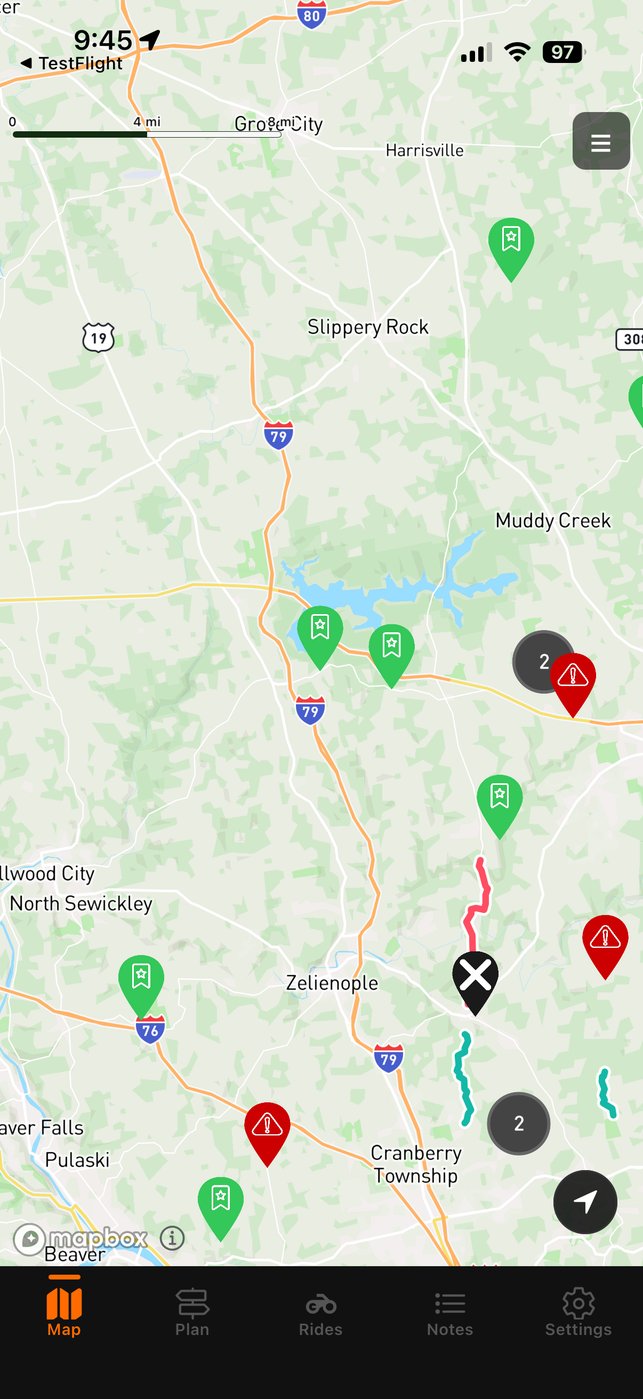
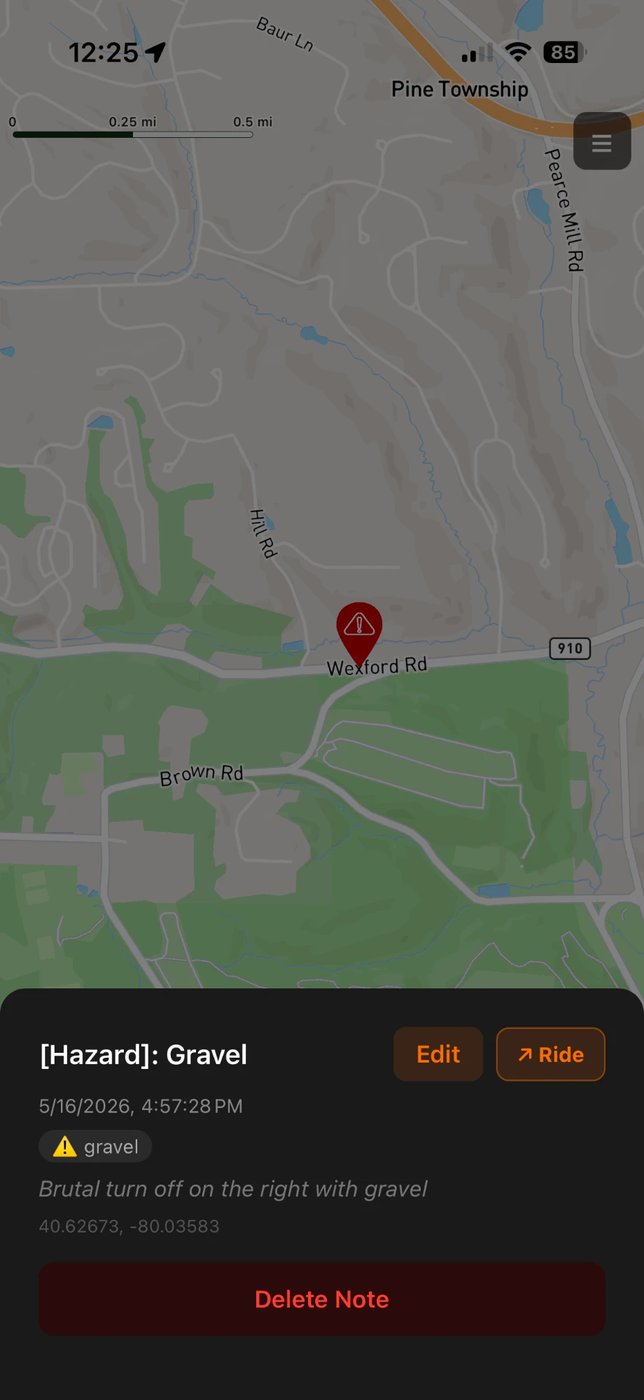
A closed road, gravel, a great stretch — say it. Two ways to start a note: press the Siri button on your helmet intercom and say your phrase (“Tag Road” out of the box), or press and hold anywhere on the nav map — gloves on, no aiming. Either way Songline records what you say, pins it to the map right where you said it, and saves it the moment you go quiet. No stopping, no typing.
Riding
What a note becomes
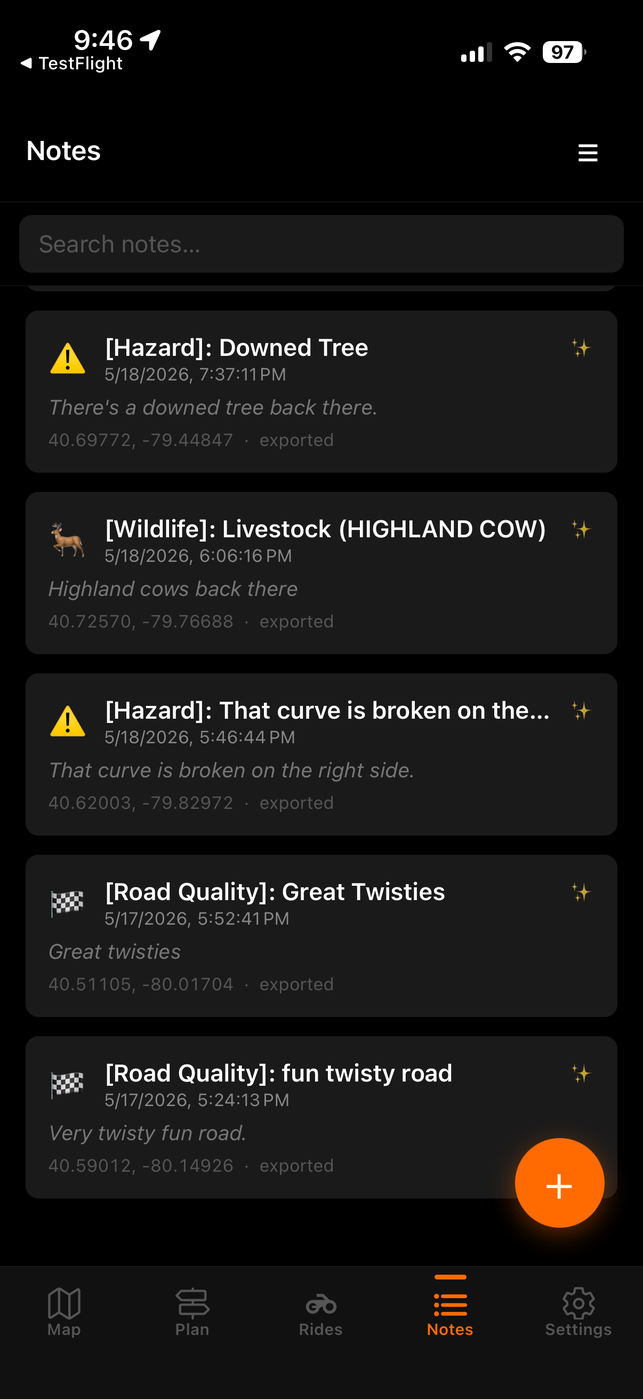
Transcribed on the phone the moment you say it, tidied on our server when it syncs, and sorted by what it is: Closed, Hazard, Wildlife, Services, Road Quality, or General.
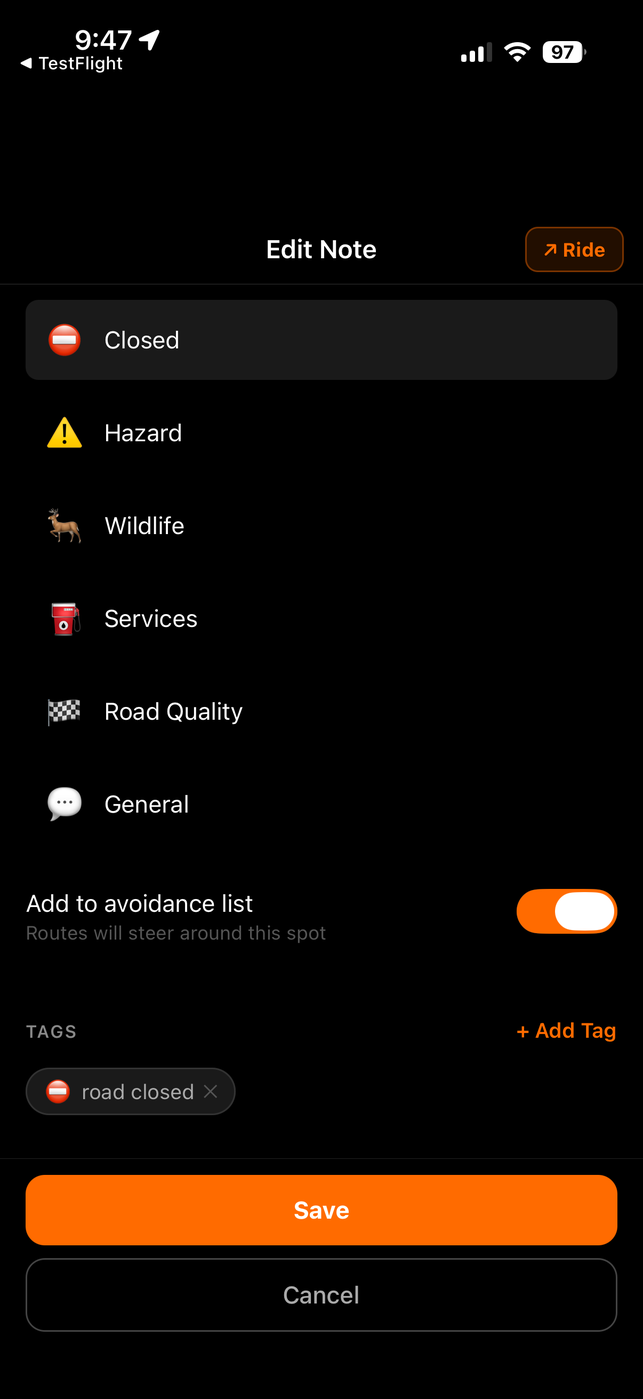
Open one to change the category, add tags, or flip “Add to avoidance list” so future routes steer around that spot.
Riding
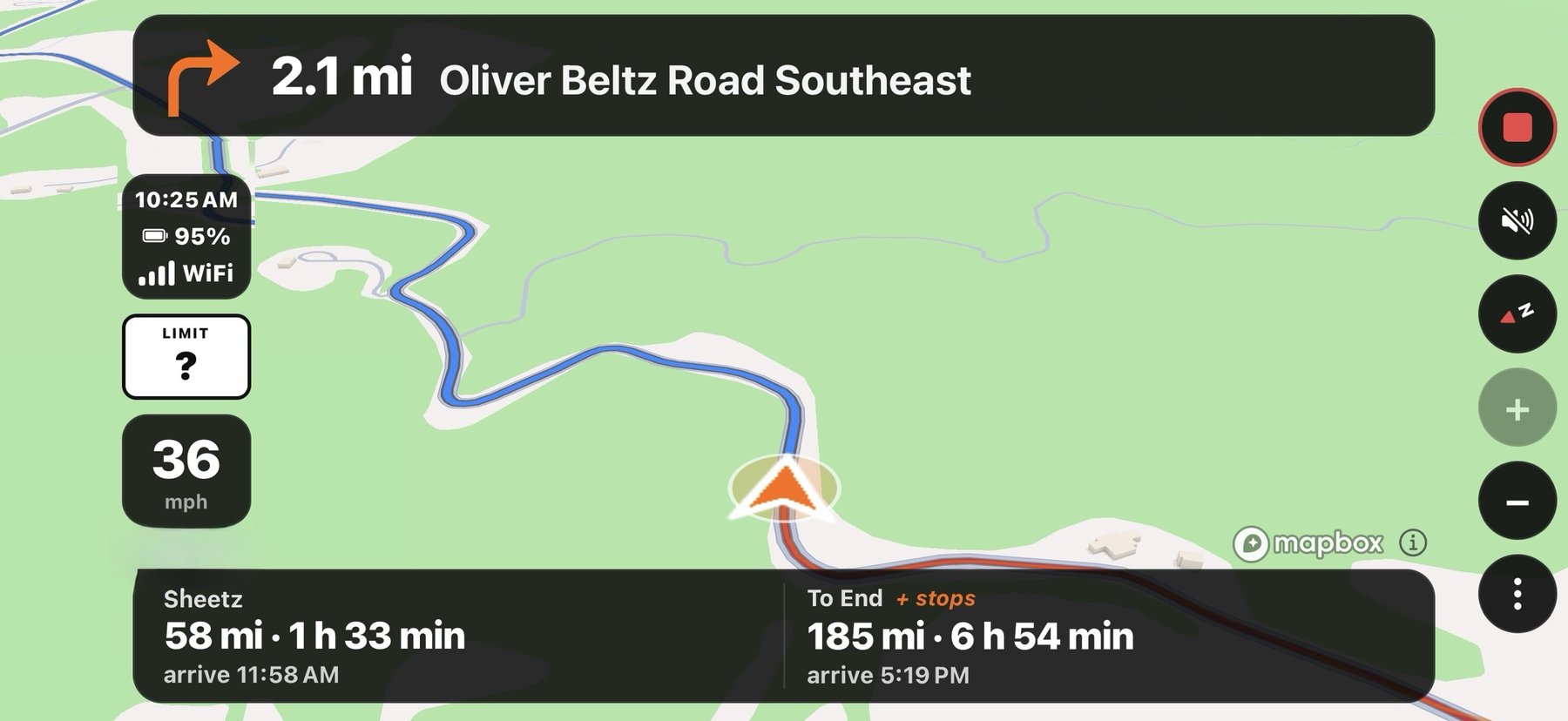
Turn-by-turn, cues in your helmet
Open a route and tap Navigate: full turn-by-turn with voice cues through your helmet audio, your next stop and the end on the bottom bar. Adjustable to your bike — orientation lock, map lighting, battery saver — and voice notes work the whole time without interrupting guidance.
Riding
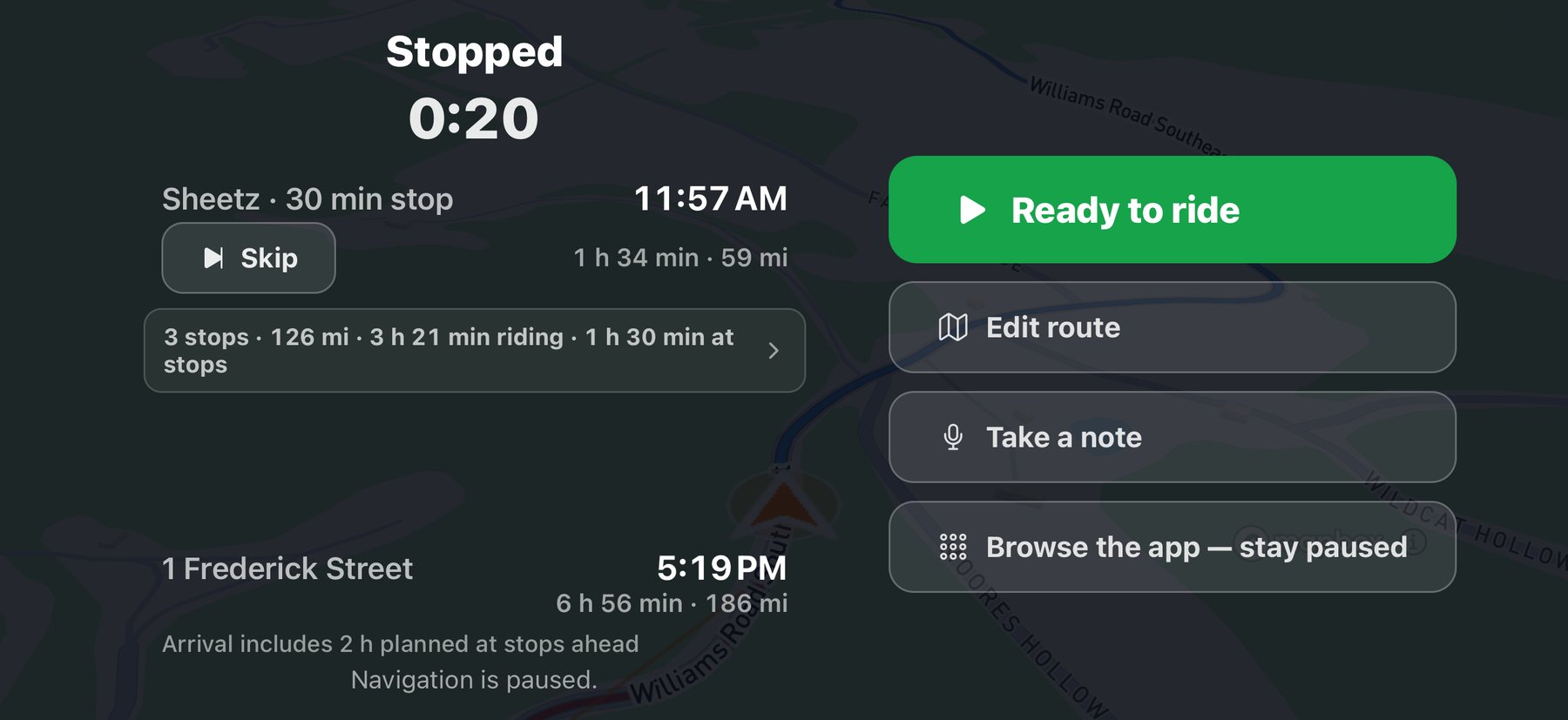
The pause screen
Stop wherever you like — a planned stop, gas, a view — and tell it so with a tap. The screen shows where the day stands: your next stop and when you’ll get there, one line for the rest of the ride, the end with its own arrival clock. Skip a stop, edit the route, take a note, or ride on. Nothing pauses unless you say so.
Planning
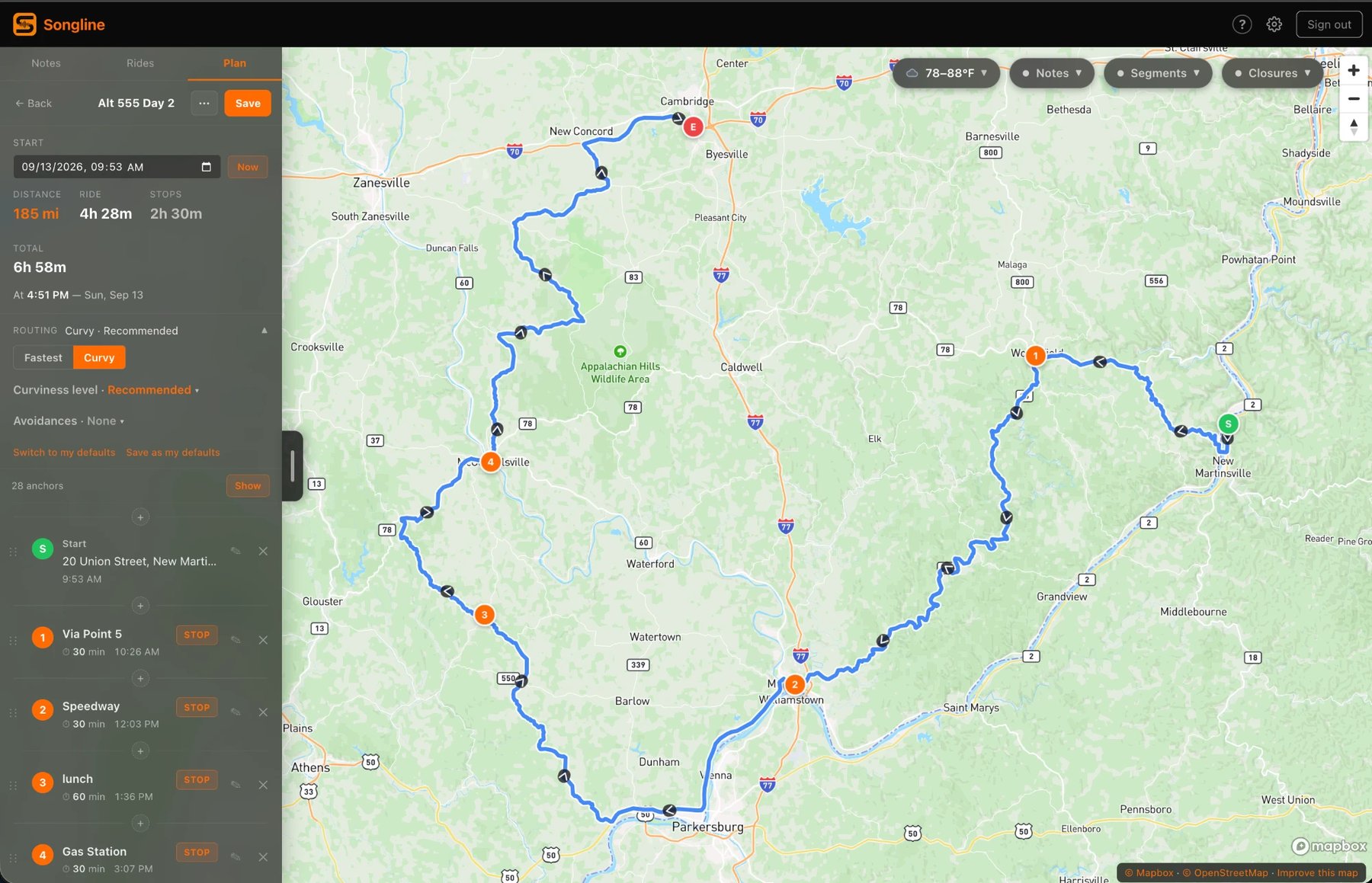
Plan the ride on the web
Routes sync between phone and web, and the big map is where real planning happens. Drop stops, drag anchors to shape the line, and route it Fastest or Curvy — Curvy at Practical, Recommended, or Full Send.
Planning
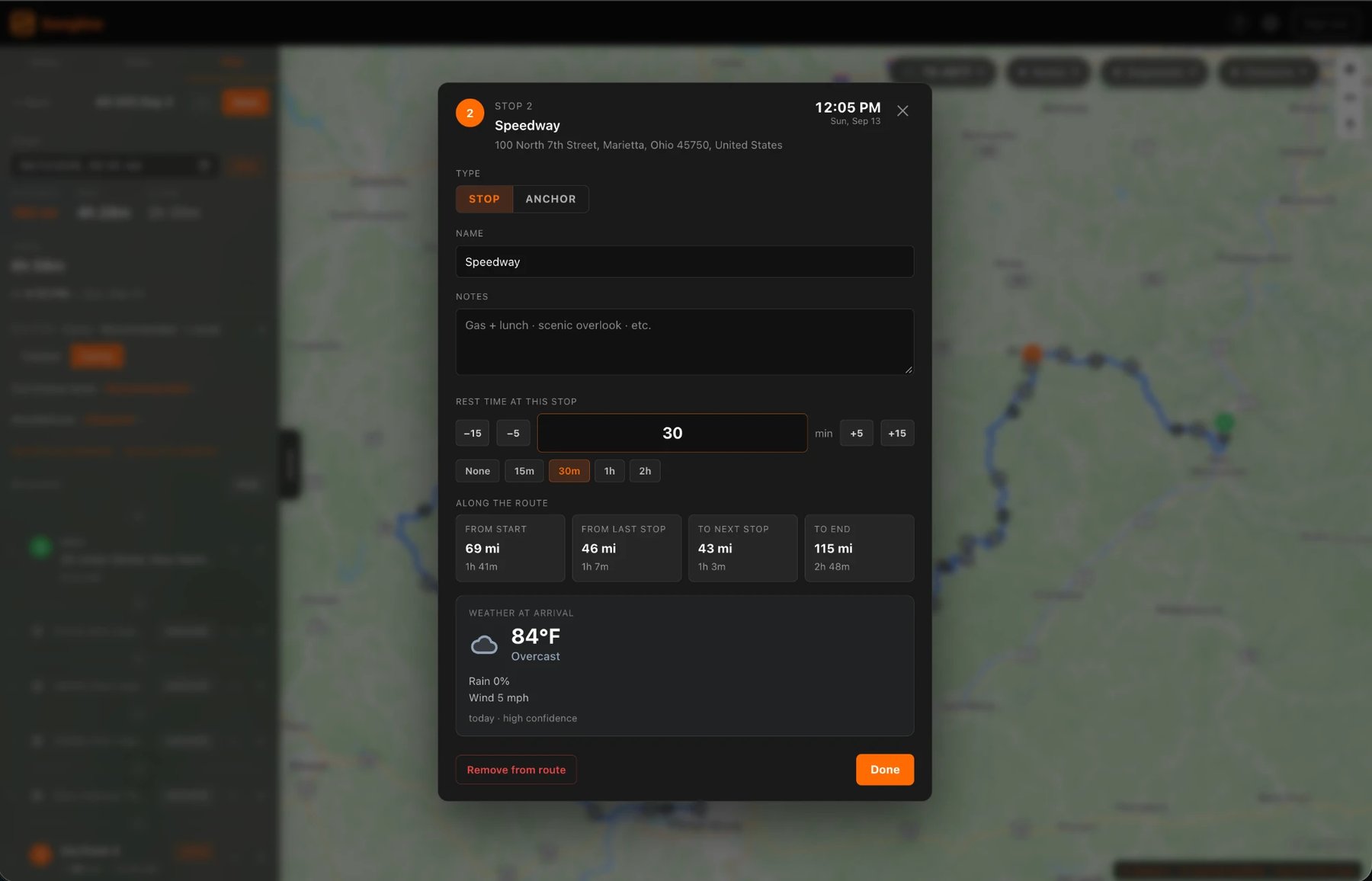
Rest minutes, and arrivals that move
Give a stop rest minutes and every arrival after it moves later. The stop’s card also shows how far it is from the last one and the next, and the weather for when you’ll get there.
Planning
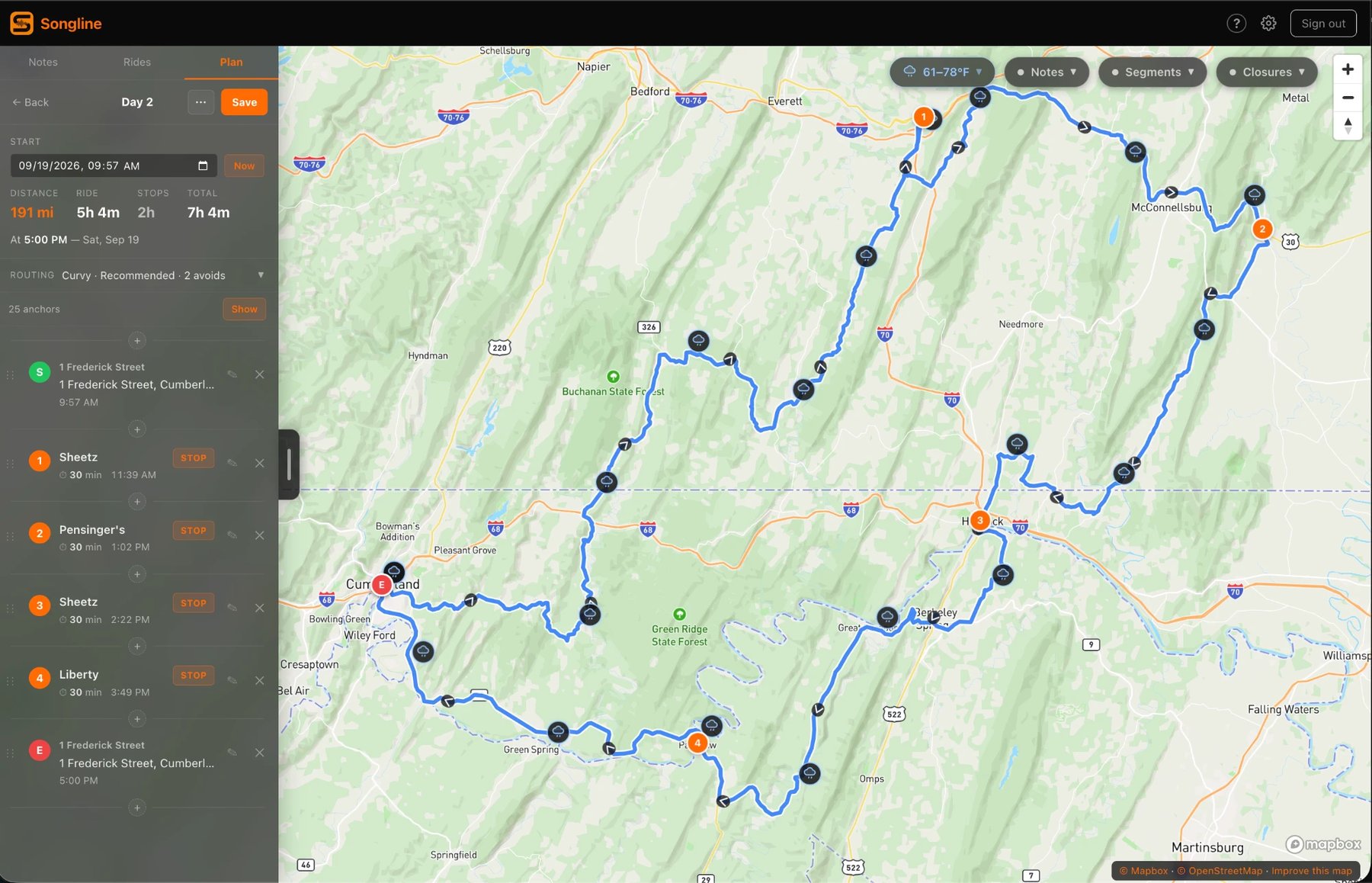
Weather along the route
Conditions along the ride at the time you will actually be at each spot — not the weather now. The pill up top sums it up; the icons sit on the route.
Planning
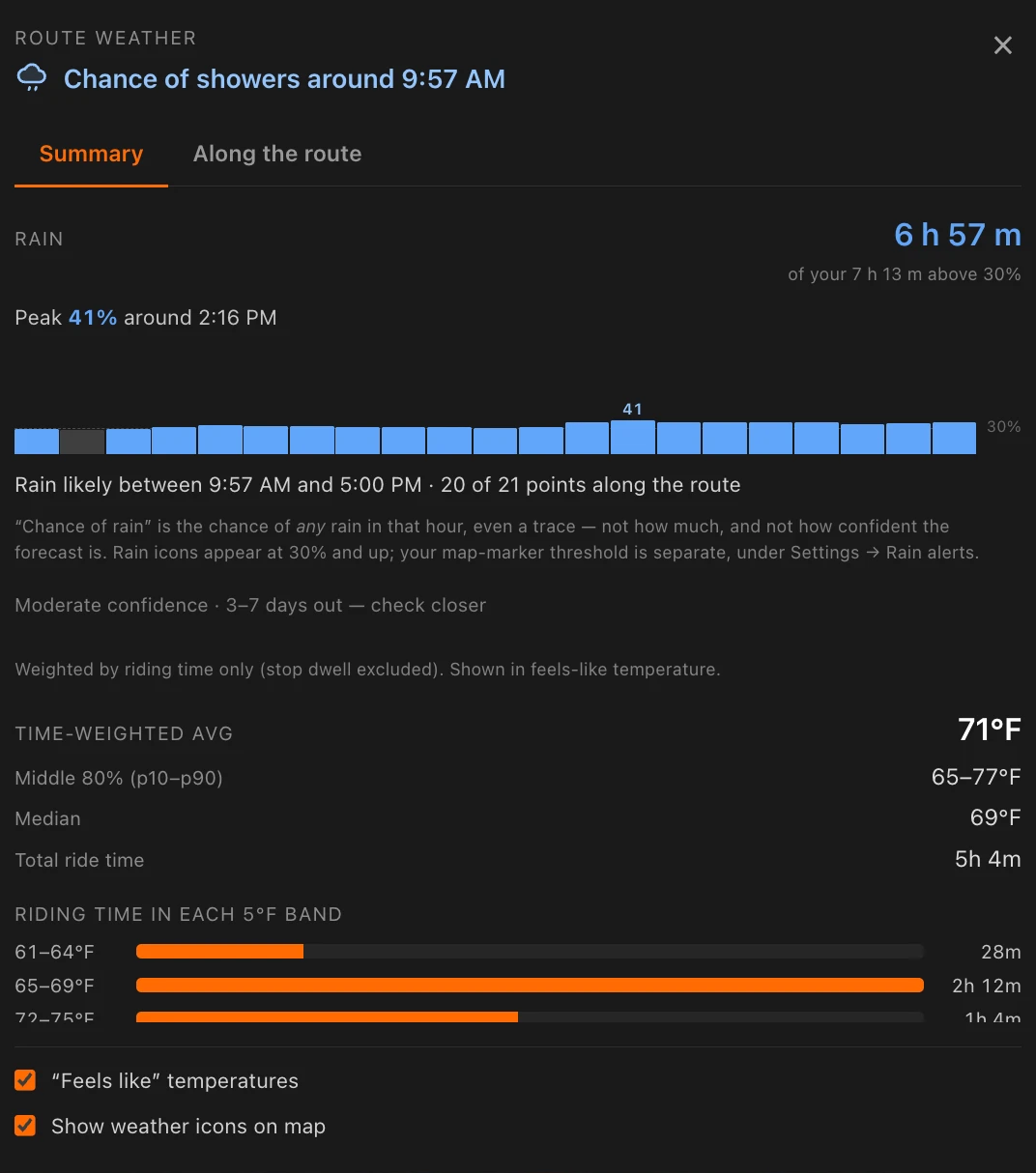
The route weather summary
How much of the ride is likely wet, when it peaks, and a time-weighted temperature for the day. Heat, cold, rain and sharp-swing warnings use your own thresholds.
Planning
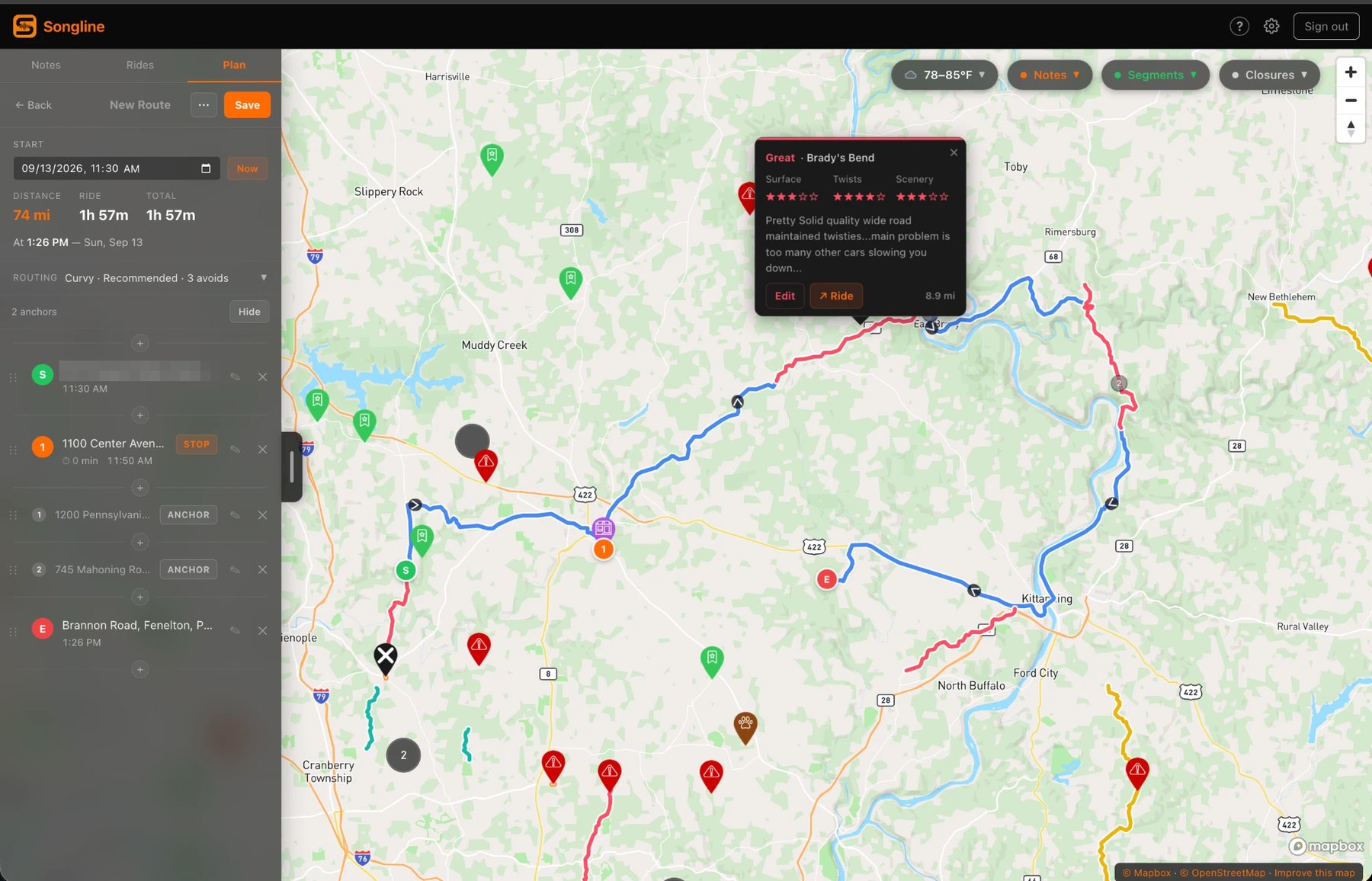
Plan from your own map
Your own note pins and rated segments sit under the route while you build it. Drop an anchor on a road you rated and the line runs through it.
Planning
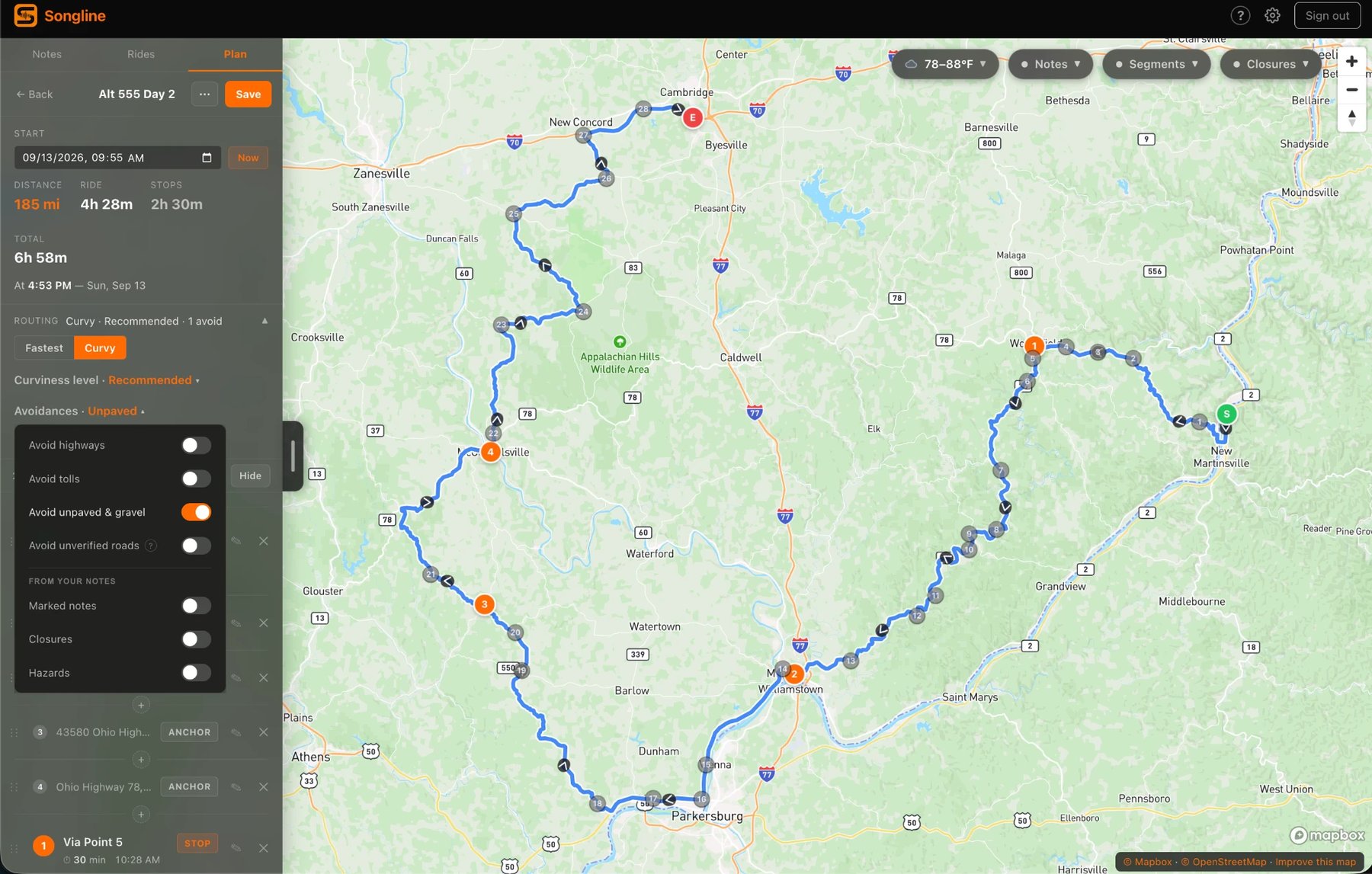
Avoid from your notes
Three switches — Marked notes, Closures, Hazards — turn your own notes into zones the router steers around. Off by default, saved with the route.
Reviewing
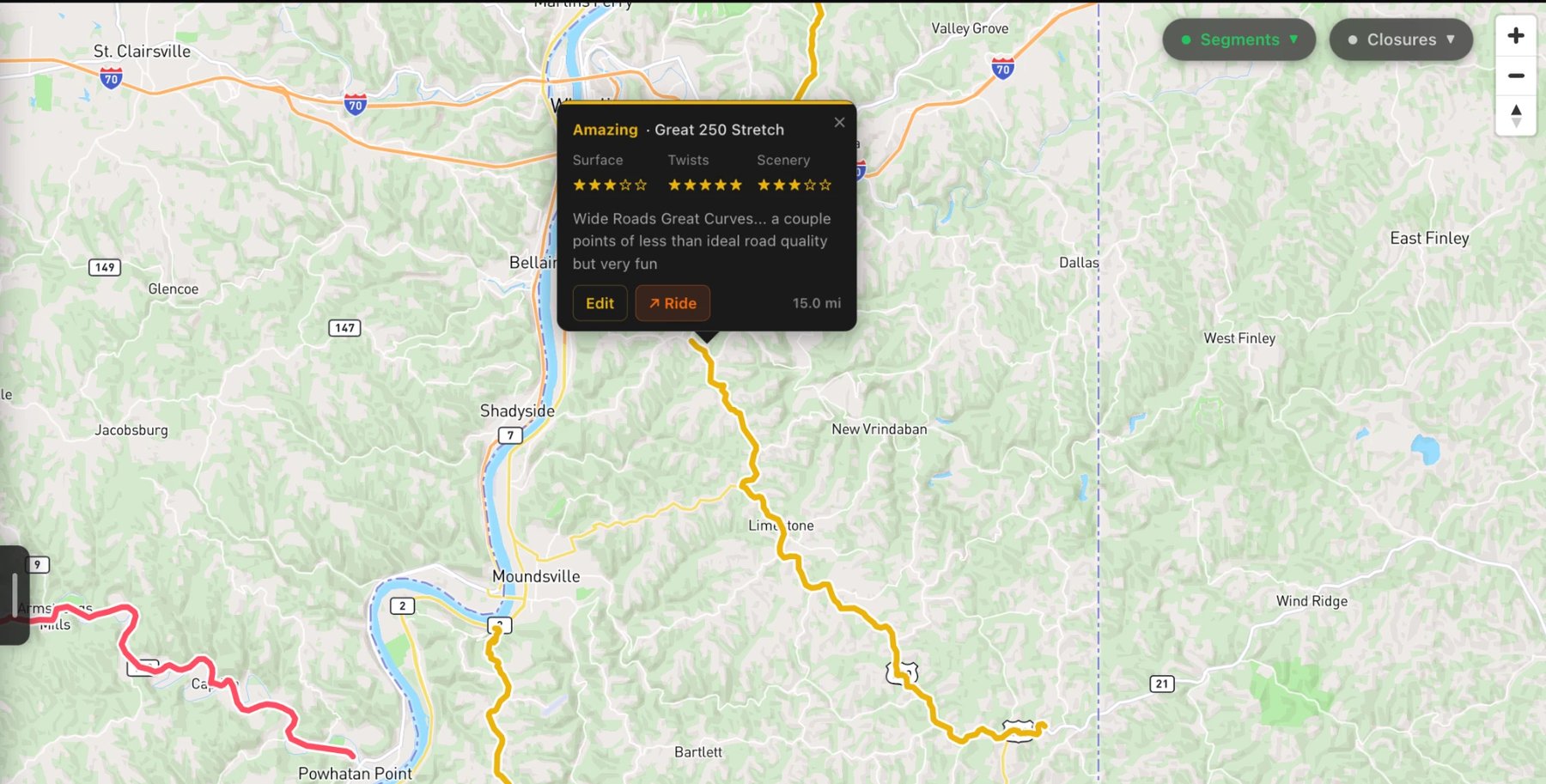
The roads worth coming back for
Every rated segment and every reviewed note on one map, from every ride — teal for Good, red for Great, gold for Amazing. Six months in, this is the map you plan the next ride from.
Reviewing
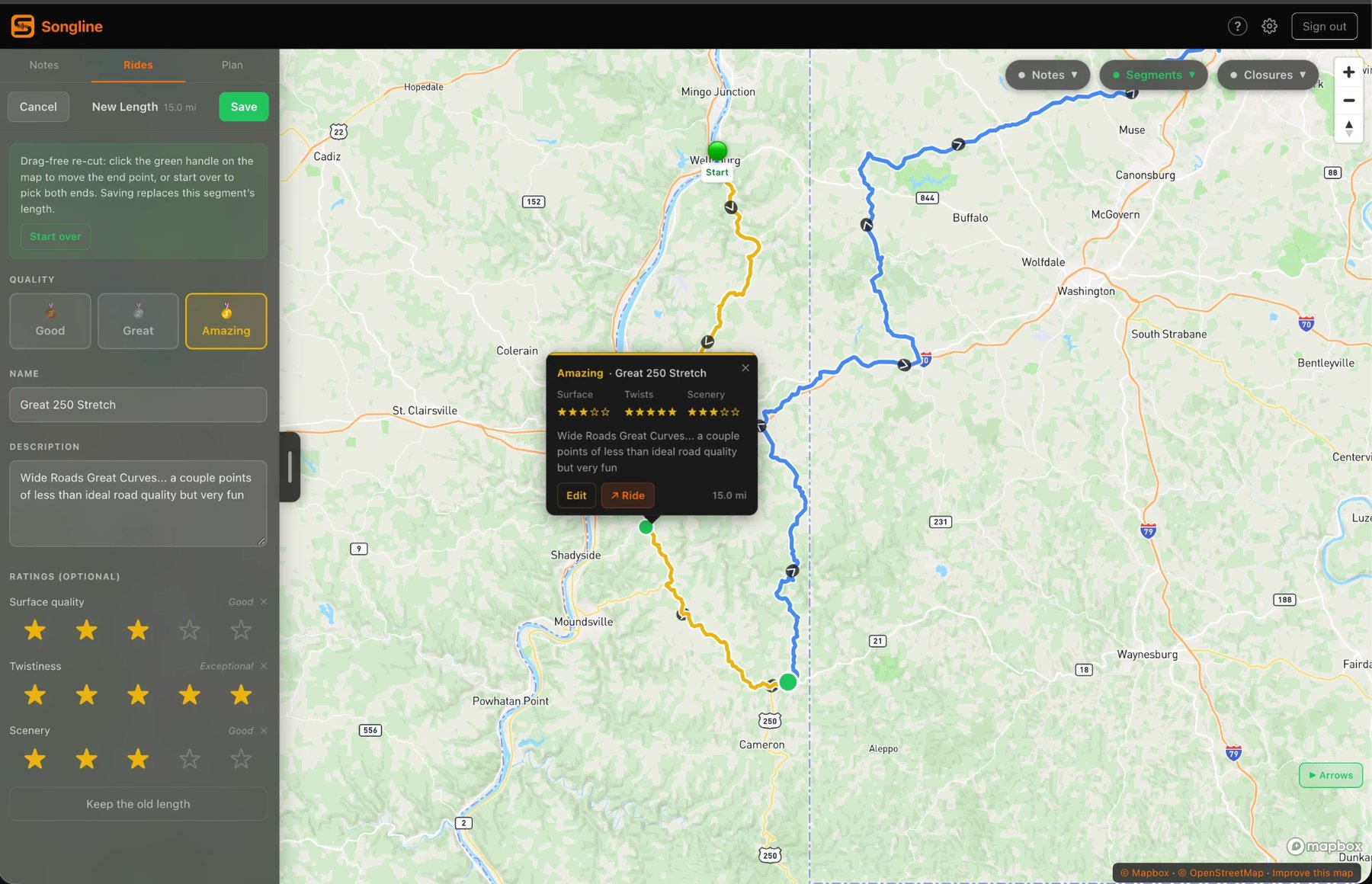
Rate a stretch
Trace a piece of your own track and rate it Good, Great, or Amazing, with scores for surface, twistiness and scenery. That is a segment: the part of the day worth keeping, kept.
Reviewing
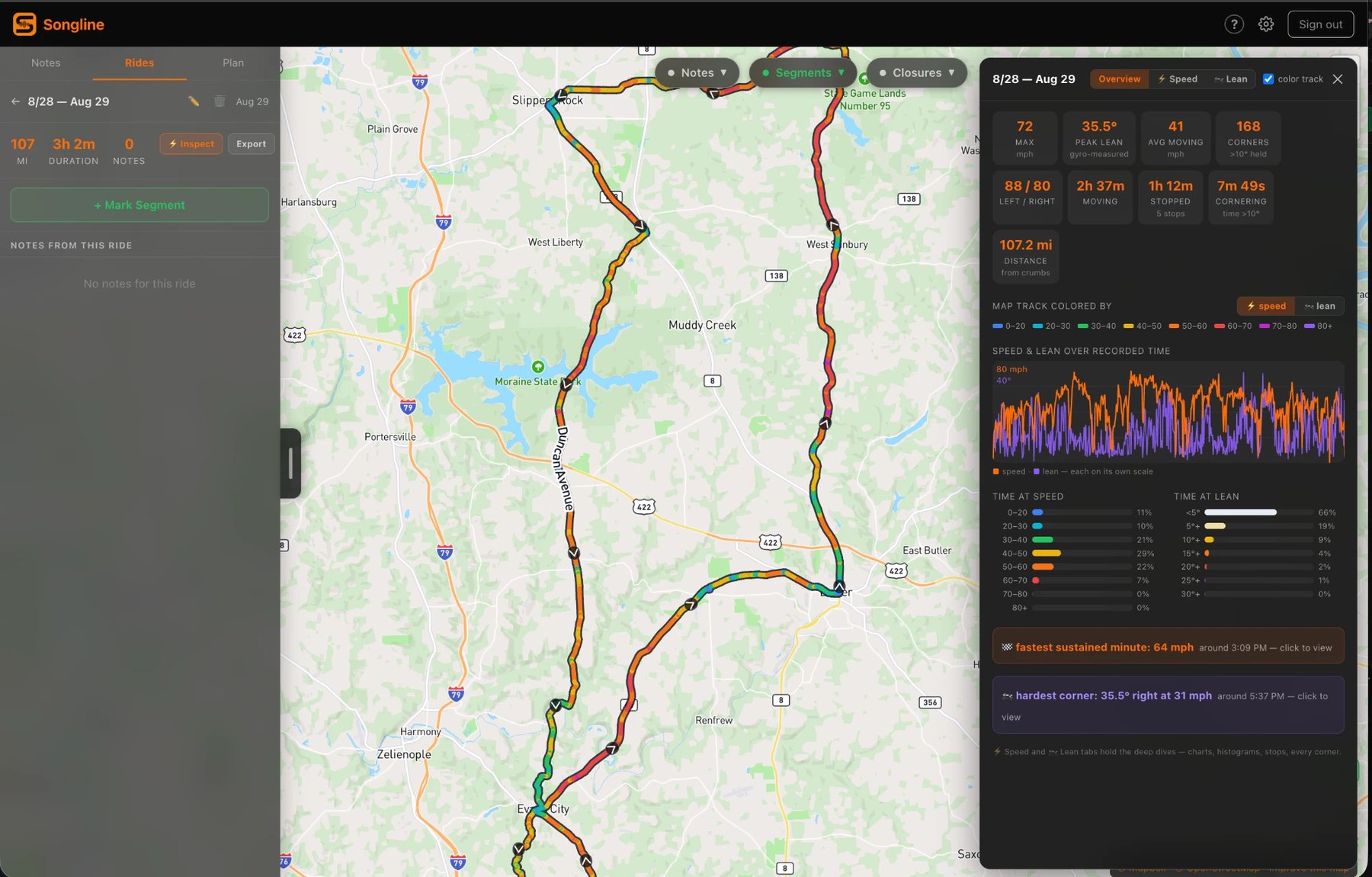
The ride inspector
Hit Inspect on a ride and the track redraws in speed colour, beside a chart of the whole ride, how long you spent at every speed, and your stops sorted into brief ones and real breaks.
Reviewing
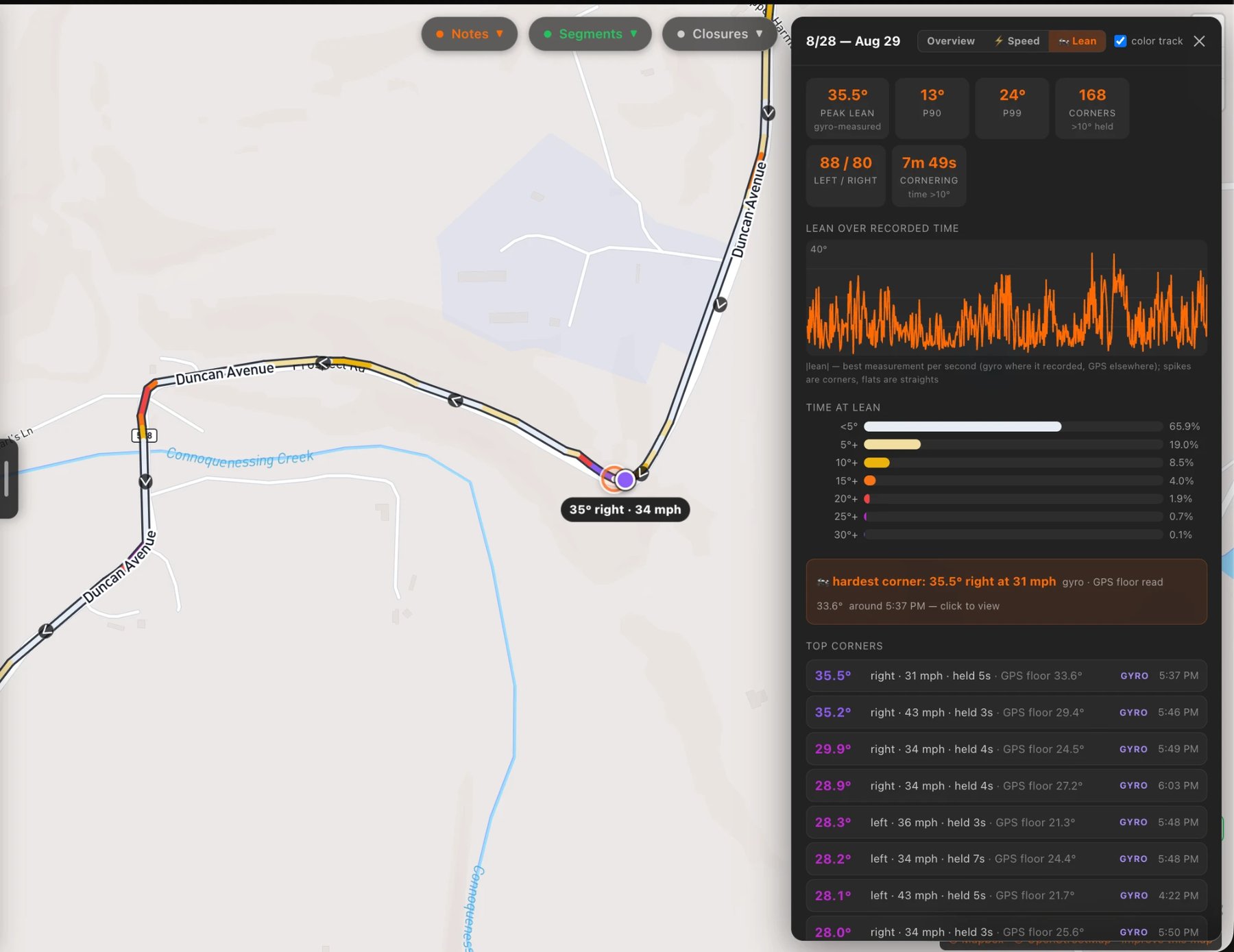
The lean read
Your hardest lean, how the corners split left and right, how long you spent leaned over, and the biggest corners — each a click from the bend it happened on.
1 / 14 · arrows, ← →, or swipe
What you need
- An iPhone
- Songline is on iPhone today. Riding and note-taking happen in the iPhone app — that’s the machine on the handlebars. The Android beta is coming soon. Choose Android on the beta form and you’re first in line.
- A helmet headset
- A Bluetooth helmet intercom is what makes the hands-free half work: turn cues in your ear, and a button you can press with a glove on to start a note. Songline has been designed and tested with a Cardo.
- A computer helps
- Not required, but highly recommended: planning and reviewing are far quicker on a desktop or laptop with an internet connection, where a mouse and a big map do the fiddly work. songline-ride.com is the full desktop companion.
- 18+, in the United States
- You must be at least 18 to use Songline, and during the beta it is intended for riders in the United States.
How the beta works
- You request access. Sign in — with Apple, Google, or an email code — then tell us which phone you ride with, what and where you ride, what you’ve used for motorcycle navigation, and what you’re hoping to get out of Songline.
- We read it. Every application gets a personal review — we’re inviting riders one at a time. iPhone riders hear back by email, usually within a few days. Android riders go on the list, and we write when the Android beta opens. Our mail comes from info@songline-ride.com, so if the confirmation lands in spam, move it to your inbox.
- Your invite arrives by email. On iPhone it’s a TestFlight link: install it, then sign in with the same email you applied with. Everything links up automatically.
- The beta is free. No card, no subscription. Pricing comes with the public launch, not before.